How to Save Recipes from Text Messages (Android, SMS & MMS)
Your mum’s lasagne recipe is in a text thread somewhere. Here’s how to get it out before the thread buries it for good.
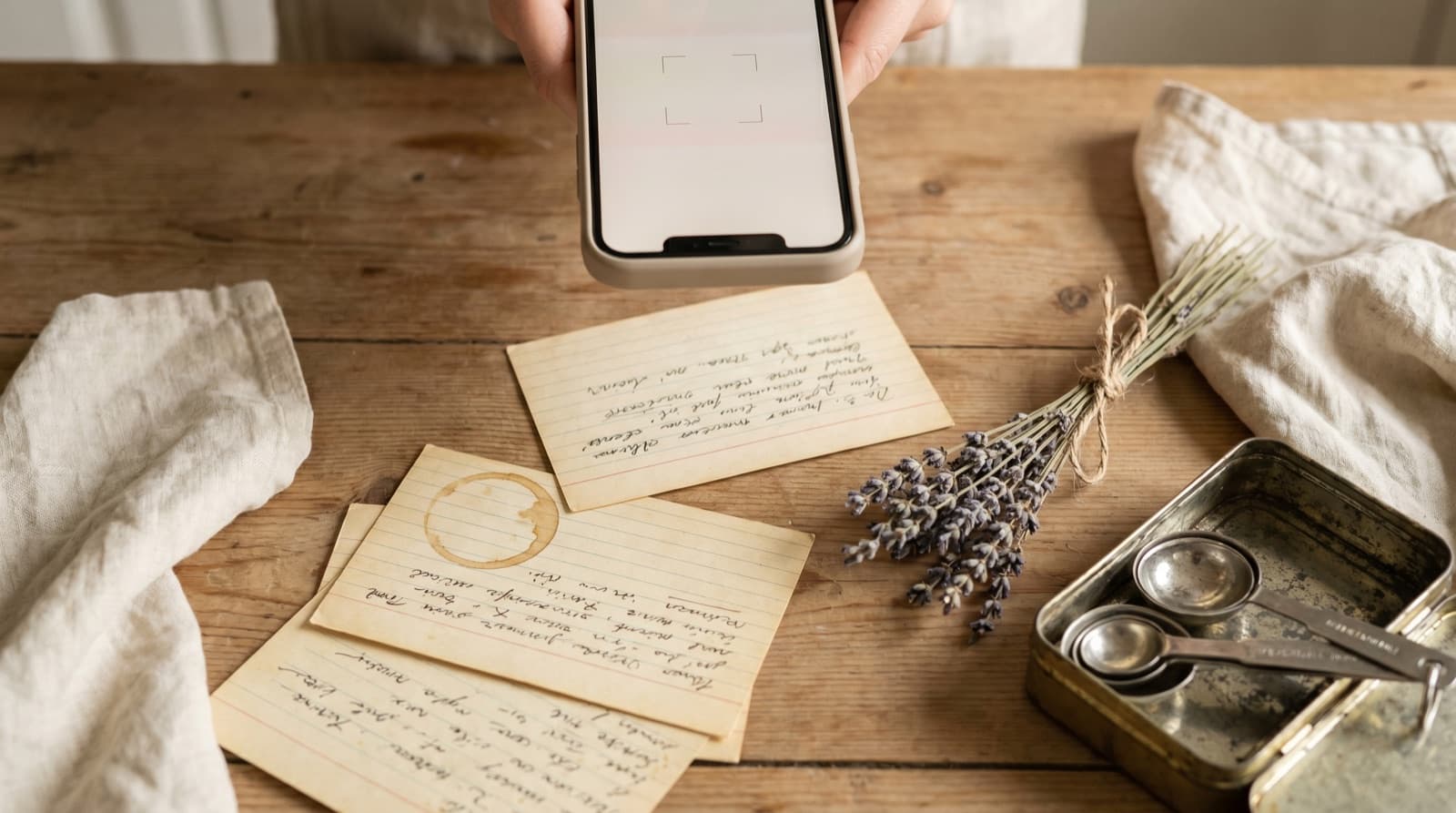
Text messages are one of the most common ways family recipes travel. Somebody’s grandmother dictates her dal recipe over the phone, someone types it up and texts it across. A friend tries a marinade that works and sends it in a WhatsApp message. Your mum texts you the Christmas pudding recipe three weeks before December and you think, “I’ll save that properly later.”
Later arrives in December, and the recipe is gone. Not deleted — still technically there, somewhere in a 4,000-message thread from the last four years. Finding it means scrolling back through months of conversation, hoping you remember which week it was sent, or that your messaging app’s search is good enough to surface plain text from two years ago. Sometimes it works. Often it doesn’t.
This is a solved problem. The solution takes two minutes at the time the recipe arrives, and zero minutes every time after that because the recipe is in a place designed to store it.
Why Text Messages Are a Particularly Bad Recipe Archive
Most content that arrives by text — a news link, a funny video, a meetup time — is consumed once and forgotten. Recipes are different. You receive them once and need to find them again, possibly years later, in a specific context (you’re cooking, your hands are busy, you have twenty minutes before guests arrive). Text message apps aren’t designed for retrieval under those conditions.
The specific problems with SMS and Android Messages as a recipe store:
- No dedicated search across all conversations. Android Messages searches within a conversation or returns matches sorted by thread, not by relevance or date. If you don’t remember who sent the recipe, you’re searching every thread manually.
- No way to tag or categorise messages. A text that contains a recipe looks identical to a text that contains anything else. You cannot filter your messages to show only recipes, only links, only images. Everything is a flat chronological stream.
- Messages delete when you switch phones. SMS messages on Android don’t back up to the cloud by default. A new phone means a clean slate. That Christmas pudding recipe is gone the moment you migrate to a new device without explicitly backing up your SMS history — which almost nobody does.
- Photos in MMS compress and degrade. Recipe photos sent as MMS are often compressed automatically by the carrier, reducing quality below the threshold where the text in the image is reliably readable. A recipe photographed on a good camera and sent as an MMS can arrive as a blurry, low-res image that is almost unusable.
How to Save a Recipe from a Text Message in Two Minutes
For a typed recipe
- Long-press the message containing the recipe text. Android Messages and most SMS apps show a Copy option in the popup menu.
- Open Pantree and tap the plus icon to start a new recipe.
- Paste into the ingredients field. Pantree parses unstructured text: “2 large onions, diced” becomes a structured, scalable ingredient automatically. If the recipe arrived as several messages, copy each in sequence and paste them together.
- Add the method steps and give the recipe a title. If the method is in the same text block as the ingredients, paste everything and sort it into the right fields in Pantree.
- Save. The recipe is now searchable by ingredient, scalable for any serving size, and available across any phone you own — not tied to one device’s SMS history.
For a recipe that arrived as a photo
- Long-press the image in the conversation and tap Save or Download. This puts a copy in your camera roll or Photos app.
- Open Pantree, tap the plus icon, and choose the photo import option.
- Select the saved image. Pantree uses OCR to read the recipe text from the photo. It handles typed recipes, printed cards, and handwritten notes reasonably well. A blurry MMS compression artefact may need a manual tidy-up, but it’s still faster than retyping everything.
- Review and save. Check the parsed ingredients and method for any OCR errors, correct if needed, and save.
The “Forward It to Myself” Trap
The most common half-solution is forwarding the recipe to yourself — either as a note-to-self text, a saved email, or a pinned message. This solves the “it’ll get buried in a conversation” problem but creates a new one: now you have a recipe in your own message thread, or in your email inbox, or in a pinned message in a chat app. All of which are still wrong formats for cooking from.
The forward-to-email approach is particularly insidious because it feels productive. You’ve “processed” the recipe. It’s in your inbox. You’ll deal with it later. Later, you search your inbox for “lasagne” and find seventeen emails including the one you wanted — but it’s still just a text string in an email, not a recipe card you can cook from on your phone with a timer running.
The same problem applies to saving the message to a Notes app, a Google Doc, or Evernote. The recipe is preserved, but it’s preserved in a format optimised for text storage, not for cooking from. The two minutes it takes to put it into Pantree directly gives you something you can actually use.
What About WhatsApp, Telegram and Signal?
The same workflows apply. WhatsApp lets you star a message (long-press → star) so it’s findable later, which is better than nothing — but starred messages live inside WhatsApp. They disappear if you reinstall the app, change phones without migrating properly, or if WhatsApp ever changes how starred messages work. We’ve written dedicated guides for saving recipes from WhatsApp, Telegram, and Signal if you use any of those as your main messaging platform.
The underlying principle is the same across all of them: the messaging app is the channel the recipe arrived on, not the place it should live. Getting it out of the thread and into a recipe keeper is a two-minute job that pays for itself the first time you actually cook the dish.
A Note on Android vs iPhone
If you’re on iPhone, the same approach applies with the default Messages app — long-press, copy, paste into Pantree. We’ve covered the iMessage-specific workflow separately, including the Shortcuts automation approach if you want to semi-automate the process. The manual copy-paste method works identically on both platforms. The main advantage on Android is that Google’s messaging apps have slightly better in-thread search, which helps if you’re trying to find an old recipe before you can copy it out.
Frequently Asked Questions
Can I search for a recipe inside Android Messages?
Yes — Android Messages has a search bar. Tap the magnifying glass and search for a word from the recipe (the sender's name, 'recipe', or a key ingredient). This works reasonably well if you remember something specific. The problem is that text messages aren't indexed by content across all threads at once: results show up per-conversation, and if the message is old or you have hundreds of conversations, it can still take several minutes of scrolling to find. The search also returns nothing if the recipe arrived as a photo of a handwritten card rather than typed text.
How do I save a recipe photo sent in a text message?
Long-press the image in the conversation and tap Save or Download — this puts it in your camera roll or Photos app. From there, open Pantree, tap the plus icon, and use the camera import feature to photograph or select the saved image. Pantree reads the text from the photo using OCR and creates a structured recipe card: ingredients parsed separately, method in steps. This is faster than retyping and more accurate than copy-pasting from a screenshot.
Is there a way to automatically save recipes from texts?
No app monitors your SMS inbox for recipes automatically — that would require invasive permissions most people (correctly) don't want to grant. The practical workaround is habit: when a good recipe arrives by text, forward it to yourself in a dedicated notes app, or open Pantree immediately and add it. The two-minute save right now costs less than the fifteen-minute search later when you've forgotten which conversation it was in.
What if the recipe was sent as a screenshot rather than text?
Save the screenshot to your camera roll, then import it into Pantree using the photo import option. Pantree uses OCR to extract the recipe text from the image — it handles screenshots of recipe cards, handwritten notes, and printed pages reasonably well. If the screenshot is blurry or low-contrast, the extraction may need a quick manual tidy-up, but it's still faster than typing the whole thing from scratch.
What about recipes sent on WhatsApp, Telegram or Signal?
The same logic applies: long-press the message to copy the text, or save an image to your camera roll, then add it to Pantree. WhatsApp specifically lets you star a message (long-press → star), which at least flags it, but starred messages are only visible inside WhatsApp and disappear if you delete the app or change devices. Pantree is the permanent copy — WhatsApp is just the channel it arrived on. We've written guides specifically for saving recipes from WhatsApp and Signal if you use either heavily.
Can I forward a recipe text to Pantree directly?
Pantree doesn't have an email or SMS address you can forward to — you add recipes inside the app. But the workflow is quick: open the message, long-press to copy the text, switch to Pantree, tap plus, paste. For longer recipes with multiple messages, copy each section in sequence. It's about two minutes total, which is roughly what a 'forward to email and remember to process later' approach costs in overhead, except Pantree is the destination, not another inbox to clear.
Get your texted recipes somewhere safe.
Pantree turns pasted or photographed recipe text into a structured recipe card with a built-in shopping list. Two minutes now, zero minutes hunting for it later.
