How to Save Recipes from Google Docs (So You Can Actually Find Them)
A shared Google Doc feels like an organised recipe source until you try to find a specific recipe three months later, the person revokes access, or the link stops working entirely.
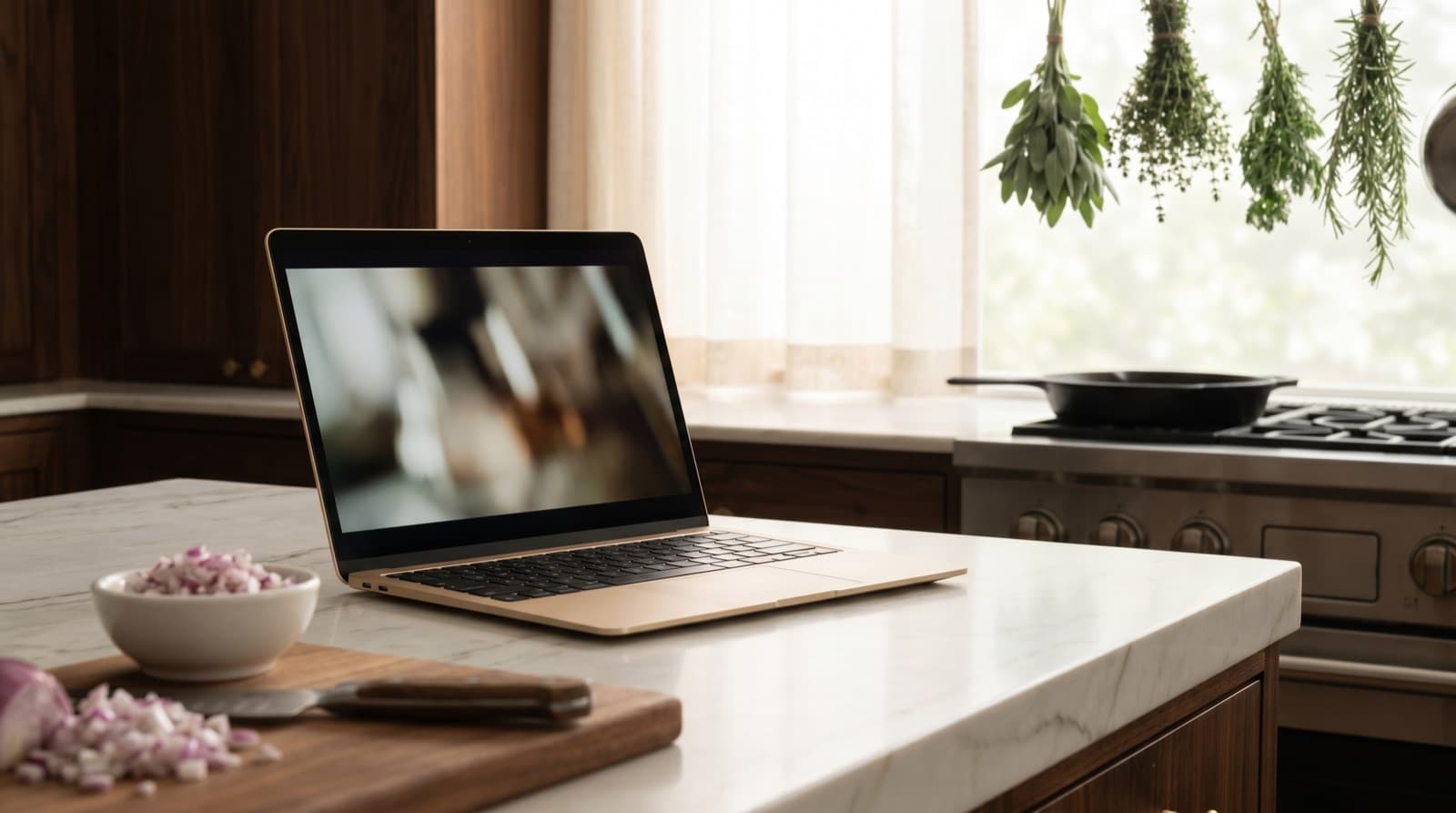
Google Docs is, on the surface, a sensible place to keep recipes. It is free, accessible on every device, and easy to share with anyone who has a Google account. Cooking class instructors hand out recipes as Google Docs. Food bloggers share recipe drafts with collaborators via Drive. Families assemble decades of recipes into a single shared document. Friends send a link in a group chat with a quick “here’s the pasta recipe I mentioned.”
The problem emerges when you try to use these documents as a working recipe library. Google Docs has no ingredient search, no scaling, no shopping list, and no cook mode. More critically, most recipe Google Docs you receive are not yours — they live on someone else’s Drive, behind a sharing link that the owner controls and can revoke without warning.
Why Google Docs Is a Fragile Place to Keep Recipes
You do not own the document
When someone shares a Google Doc with you, you are borrowing access to a file on their Drive. The document appears in your “Shared with me” section of Google Drive, but it is not in your Drive. If the owner deletes the document, moves it to a restricted folder, changes the sharing permissions, or simply cleans out their Drive, your link stops working and you lose the recipe.
This happens more often than people expect. Cooking class instructors delete teaching materials between terms. Food bloggers migrate to new systems and lose track of their shared draft links. Family members who set up the original document delete their Google account. The shared link is not a permanent record; it is a pointer to someone else’s file that can break at any time.
Google Drive’s search is title-based, not ingredient-based
Google Drive search is excellent at finding files by their name. If someone shared a document called “Chicken Tikka Masala Recipe”, you can find it. What you cannot do is search across all your recipe documents for “what can I make with chickpeas?” or “show me all pasta dishes.” Google Drive has no concept of ingredients. It sees recipe documents as files containing text, not as structured data.
After you have accumulated recipes across ten different shared documents — a family collection, a cooking class handout, a friend’s recipe, a food blogger’s draft — finding the right recipe requires remembering which document it was in. That is the opposite of a useful recipe library.
Formatting is always inconsistent
When multiple people contribute to a recipe Google Doc over time, the formatting becomes a patchwork. Some recipes list ingredients inline with the method. Others use tables. Some use grams, others cups, others a mix. Headings vary in style. Some recipes have no servings count; others bury it in a paragraph. None of this matters when you are reading casually, but it matters a great deal when you are trying to halve a recipe in a hurry or build a shopping list from it without reading the entire document.
How to Save Recipes from a Google Doc
Method 1: Copy the text and paste into Pantree
This is the fastest method and works for virtually any Google Doc, including view-only documents:
- Open the Google Doc in your browser or the Google Docs app.
- Select all the text: Cmd+A on Mac, Ctrl+A on Windows or Android.
- Copy: Cmd+C or Ctrl+C.
- Open Pantree and use the text import option.
- Paste the text. Pantree reads through it and structures it into a recipe.
Pantree handles inconsistent formatting well — it is designed to work with the kind of messy, real-world text that comes from copy-pasting a document rather than a structured API. If the document contains multiple recipes, paste each one separately to get a clean individual recipe in your library.
Method 2: Make your own copy of the document first
If you want to keep a Google Docs copy for reference while also importing into Pantree, you can make your own copy of a shared document. In Google Docs, go to File → Make a copy. This creates a duplicate in your own Drive that you control — no longer dependent on the original owner’s sharing settings.
Note that “Make a copy” is disabled on documents where the owner has restricted copying. In those cases, you can still select and copy the text manually, or use the Print → Save as PDF route described below.
Method 3: Download as plain text and import
For longer documents with many recipes, you can download the Google Doc as a plain text file (File → Download → Plain Text) and open it on your phone. From there, copy individual recipes and paste them into Pantree one by one. This is more steps than the direct copy method, but it is useful when you are working through a large family recipe collection and want to process it in batches.
Method 4: Photo import for restricted or printed documents
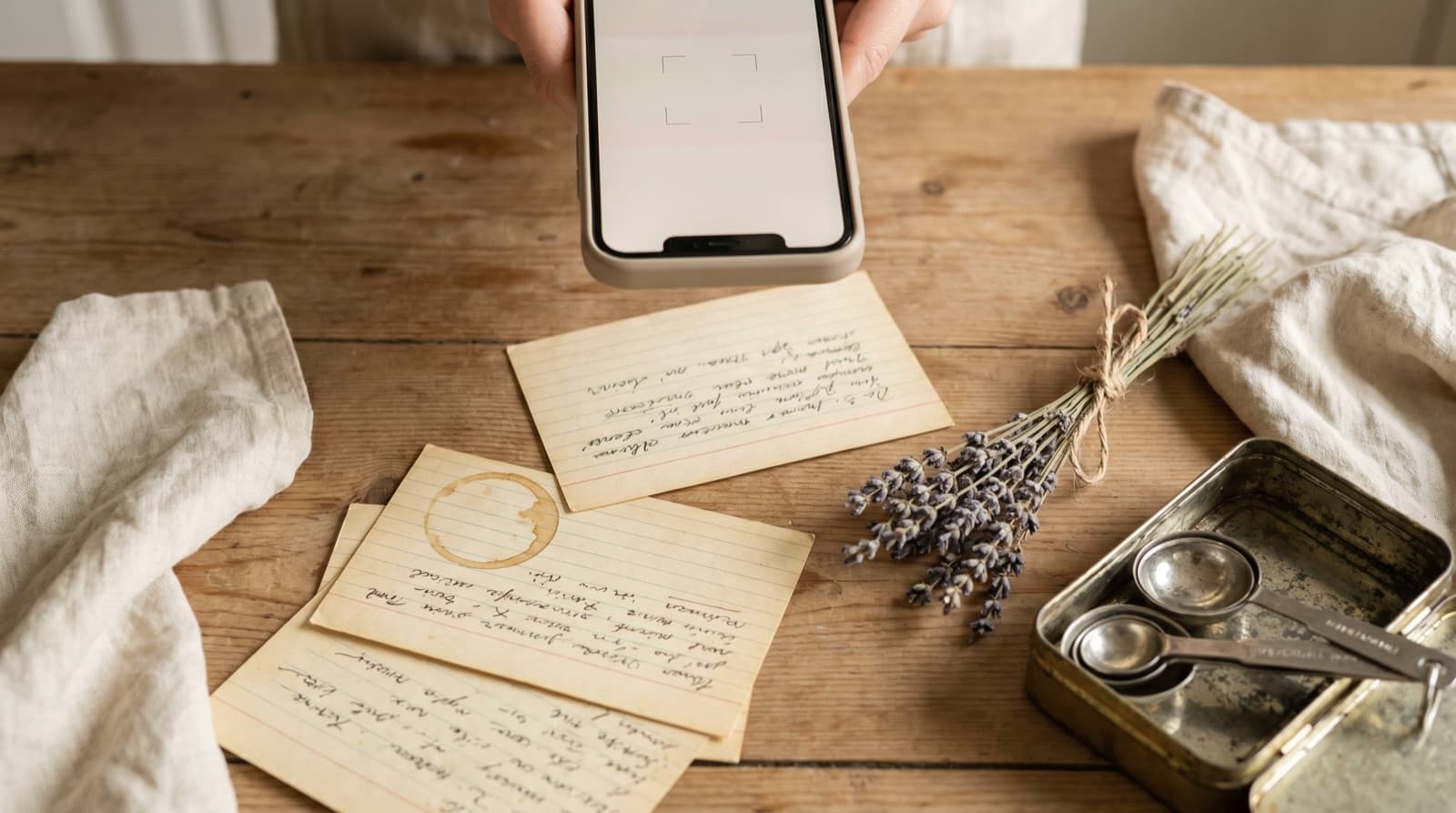
Occasionally a document owner will lock down a Google Doc so that text selection and copying are disabled — this is uncommon but possible via the advanced sharing settings. In this situation, you can print the document to PDF (Cmd+P on Mac, Ctrl+P on Windows, then “Save as PDF”) and use Pantree’s camera function to photograph the rendered pages. The app reads the text from the image and structures it as a recipe.
This is also the right method for recipe PDFs shared via Google Drive — PDFs from cooking classes, nutrition plans from a dietitian, or recipe booklets from a food brand. Save the PDF to your camera roll or share it to Pantree directly from the Files app.
The Family Recipe Google Doc Problem
One of the most common Google Docs recipe scenarios is the family collection — a document started by a parent or grandparent, shared with everyone, and gradually filled with recipes from across generations and family members. These documents are often 30 to 60 pages long with no consistent structure, mixing handwritten-to-typed transcriptions, scanned images, and recipes copied from various websites.
The challenge with family recipe Google Docs is that they are genuinely valuable but practically unusable as a day-to-day cooking reference. Nobody wants to scroll 50 pages to find the ginger biscuit recipe that appears somewhere after the Christmas pudding but before the lemon drizzle cake.
Pantree solves this by letting you import each recipe individually. It is a one-time project — an afternoon with the document open on a laptop and Pantree on your phone, pasting recipe by recipe — but the result is a searchable, personal recipe library built from the family collection. You can search for an ingredient, scale the recipe for the number of people you are feeding, and generate a shopping list without rereading the whole document. The Google Doc remains as an archive; Pantree becomes the working library.
What About Cooking Class Handouts?
Cooking classes — whether in-person, online, or on subscription platforms like Substack — routinely distribute recipe handouts as Google Docs or Google Drive links. These are time-limited by nature: the instructor archives or deletes their teaching Drive after the term ends, or the platform changes how it handles attachments.
If you have attended a cooking class and received a recipe Google Doc, import the recipes into Pantree now rather than assuming the link will work indefinitely. The recipes are the value, not the document. Once they are in Pantree, you have them regardless of what happens to the original Drive.
What You Get Once It’s in Pantree
A recipe moved from a Google Doc into Pantree becomes a structured entry in your personal library with the same capabilities as any other Pantree recipe:
- Ingredient search across your whole library. Find every recipe that uses a particular ingredient, regardless of which Doc it originally came from.
- Automatic scaling. The family recipe that serves twelve can be scaled to four without manual arithmetic.
- Shopping list generation. Pantree builds a shopping list from the recipe’s ingredient list, sorted for a real supermarket trip. No rereading a 50-page document to extract the quantities.
- Cook mode. Step through the recipe one instruction at a time on your phone, ticking off ingredients as you go. Vastly better than scrolling a Google Doc with floury hands.
- You own it. The recipe is in your library permanently, independent of whoever shared the original Doc or whether that Doc still exists.
The Pattern Across All Shared Documents
Google Docs is one of many places where recipes arrive in a format that looks organised but does not function as a recipe library. The same problem applies to recipes in Apple Notes, recipes shared via email newsletters, and recipes saved from websites as browser bookmarks. In every case, the document or link is a pointer to content that someone else controls — and the recipe you actually want to cook belongs in a place you control.
Moving a recipe from a Google Doc to Pantree takes about a minute. Losing access to a shared document and realising you never saved the recipe takes a second, and there is nothing to be done about it afterwards. Import now; cook from Pantree whenever you are ready.
Frequently Asked Questions
Can I import a Google Docs URL directly into a recipe app?
Not directly into most recipe apps, because Google Docs requires a Google login to access — the page a recipe app's parser sees is an authentication redirect, not recipe text. The reliable method is to open the Google Doc, select all the text (Cmd+A or Ctrl+A), copy it, and paste it into Pantree's text import. Pantree reads the raw text and structures it into ingredients and steps, even when the source is a Google Doc with inconsistent formatting.
What happens if someone stops sharing a Google Doc with me?
Once the person revokes your access or deletes the document, you will see a 'You need access' or 'File not found' error. Google Drive does not notify you in advance that access is about to be revoked. If you have not copied the recipe to your own library before access is removed, the recipe is gone. This is the core fragility of relying on someone else's shared document as a recipe source — the permission is theirs to withdraw at any time, for any reason.
Can I use Google Docs as a recipe organiser?
You can, but it has significant limitations. Google Docs has no ingredient parsing, no scaling, no shopping list generation, and no way to search across all your recipes by ingredient. You can find a document by its title in Drive, but you cannot search across all your recipe documents for 'recipes that use chickpeas'. It also has no cook mode — you are scrolling a document with floury hands rather than tapping through steps. For a handful of recipes it works. As a long-term library of hundreds of recipes, it breaks down quickly.
How do I save a recipe from a view-only Google Doc?
A view-only Google Doc lets you read the content but not edit it. You can still select and copy the text — select all with Cmd+A (Mac) or Ctrl+A (Windows/Android), copy with Cmd+C or Ctrl+C, then paste into Pantree's text import. If the document owner has disabled copying (an option available via Docs' advanced sharing settings), you can type the recipe out manually, or print the page to PDF and then use Pantree's photo/camera import on the rendered text.
Is a family recipe Google Doc worth keeping in Docs?
Family recipe collections in Google Docs are often well-intentioned but unwieldy — a 40-page document with no internal navigation, headers that vary in formatting, and a mix of metric and imperial measurements that nobody has standardised. Pantree handles this better: import each recipe individually (or paste the whole document and let Pantree identify the recipes within it), and you end up with a searchable collection where every recipe has a proper ingredient list and can generate a shopping list. The Google Doc then becomes a backup archive rather than the working library.
What about Google Docs shared by cooking class instructors or food bloggers?
Cooking class handouts and food blogger recipe PDFs shared as Google Docs are among the most common 'recipe in a document' formats. The problem is that when the class ends or the blogger updates their content management system, the shared link often breaks. The instructor deletes their teaching Drive or changes the sharing settings; the blogger migrates their files. If you have not moved the recipe to your own library before that happens, the recipe disappears. Pantree gives you a copy of the recipe that exists independently of anyone else's Drive.
Stop losing recipes when shared Google Docs go dark.
Copy the text into Pantree and get a structured, searchable recipe with a shopping list — stored in your own library, independent of anyone else’s Drive. Free on the App Store.
