How to Save Recipes from Microsoft OneNote (When Your Recipe Library Is Buried in Work Notebooks)
OneNote is where productivity-minded home cooks store recipes — clipped from the web, pasted from emails, typed up after a cooking class. It organises beautifully into sections and pages. The problem arrives the moment you try to cook from it: OneNote stores those recipes as notes, not as recipes. And for anything beyond reading the page, that distinction matters enormously.
Why OneNote Became a Recipe Dumping Ground
Microsoft OneNote ships free with Office 365, which means most people with a work laptop or a Microsoft account already have it. The notebook-and-section structure maps naturally onto a recipe archive — “Recipes” as a notebook, then sections for “Chicken”, “Pasta”, “Baking”, and so on. The OneNote browser extension clips recipe pages cleanly. And because OneNote syncs to your phone automatically, the same archive shows up everywhere.
The result is that a large number of home cooks have ended up with a genuine recipe collection inside OneNote — some by deliberate choice, others because recipes accumulated there alongside meeting notes and to-do lists and the archive just grew. Microsoft estimates over 100 million people use OneNote monthly. A conservative fraction of those have at least a handful of recipes in there. Many have hundreds.
The trouble is that OneNote was built as a note-taking tool. It does that job extremely well. It was not built as a recipe app, and that distinction surfaces the moment you want to do anything with a recipe beyond read it.
The Problem: OneNote Notes Are Not Recipes
A recipe page in OneNote is a block of text and images. The ingredient list is a paragraph or a bulleted list. “300g chicken thigh” is a string of characters. OneNote has no concept of a quantity (300), a unit (g), or an ingredient (chicken thigh) as separate fields. The same is true for every note app: whether it’s Evernote, Notion, or Apple Notes, the container is wrong for the content.
This matters in three everyday ways. First, scaling: if you want to cook a recipe for 8 instead of 4, you read every ingredient line and double every number yourself. OneNote cannot help because it doesn’t know which numbers are quantities. Second, shopping lists: if you want a combined shopping list from three recipes, you’re copy-pasting from three pages into a fourth and manually deduplicating “2 garlic cloves” where it appears twice. Third, search: “find me all my chicken thigh recipes” is only possible if you’ve tagged or titled every page with the protein — which most people do for the first twenty pages and then stop.
A recipe app like Pantree models every ingredient as structured data. Change 4 servings to 8, and all 12 ingredient quantities update. Add three recipes to a weekly plan and Pantree produces a single shopping list with duplicates merged and quantities summed. Search “chicken thigh” and every recipe containing it appears, regardless of how you titled the page. The information is sitting in your OneNote notebooks already — it just needs to move into the right container.
The Buried-in-Work-Notebooks Problem
OneNote has a specific friction point that Evernote and Notion users are less likely to hit: the work notebook collision. Because OneNote is bundled with Office 365, many people use the same account for work and personal life. The result is a notebook list that looks something like: “Q4 Project Notes”, “Team Meeting Minutes”, “Recipes”, “Client Onboarding”, “Weekend Cooking”. Recipes are sandwiched between work content, and finding a specific dish requires scrolling through an increasingly irrelevant notebook list.
Worse: many people never made a dedicated “Recipes” notebook at all. A recipe clipped from BBC Good Food landed in “Personal”. A pasta sauce typed up after watching a cooking video went into “Random Notes”. Recipes are distributed across three or four notebooks with no systematic way to retrieve them.
OneNote’s search (Ctrl+F on desktop, the magnifying glass on mobile) does search across all notebooks. But a keyword search returns a flat list of matching pages in no particular order, and distinguishing “meeting note that mentions lunch” from “actual recipe” requires opening each result.
What OneNote’s Export Actually Gives You
OneNote exports pages and sections as .docx files or PDF. Both formats encode the content as formatted text — readable, printable, and completely unusable as a basis for recipe scaling or shopping. A .docx of a recipe page is a Word document. Importing it into a recipe app is not a supported workflow for any major recipe application. You would need to copy-paste each recipe manually, which defeats the purpose of exporting in the first place.
There is no direct migration path from OneNote to a recipe app via export. This puts OneNote in exactly the same position as Google Docs or a Kindle cookbook — human-readable but structurally useless for automation. The practical migration paths go around the export entirely.
How to Move OneNote Recipes to Pantree
The right method depends on how the recipe got into OneNote.
Clipped from a website (the most common case): OneNote’s browser extension stores the source URL in the note footer — look for a line that reads “Source: https://...” at the bottom of the page. Copy that URL and paste it into Pantree via + → Import from URL. Pantree fetches the recipe directly from the source page — BBC Good Food, AllRecipes, Serious Eats, NYT Cooking, and most major recipe sites — and saves it as a structured entry with quantities, scalable servings, and complete steps. This takes about 15 seconds per recipe. A section of 60 clipped recipes can be migrated in under two hours.
Typed or pasted manually: Use Pantree’s camera import. Open the OneNote page, screenshot the full content, and import via + → Import from Photo. Pantree’s image parser extracts the ingredient list and steps from the screenshot — parsing quantities, units, and ingredient names without manual re-entry. For most recipes this works well in one pass. Very long recipes with multiple sauce components may need a correction or two.
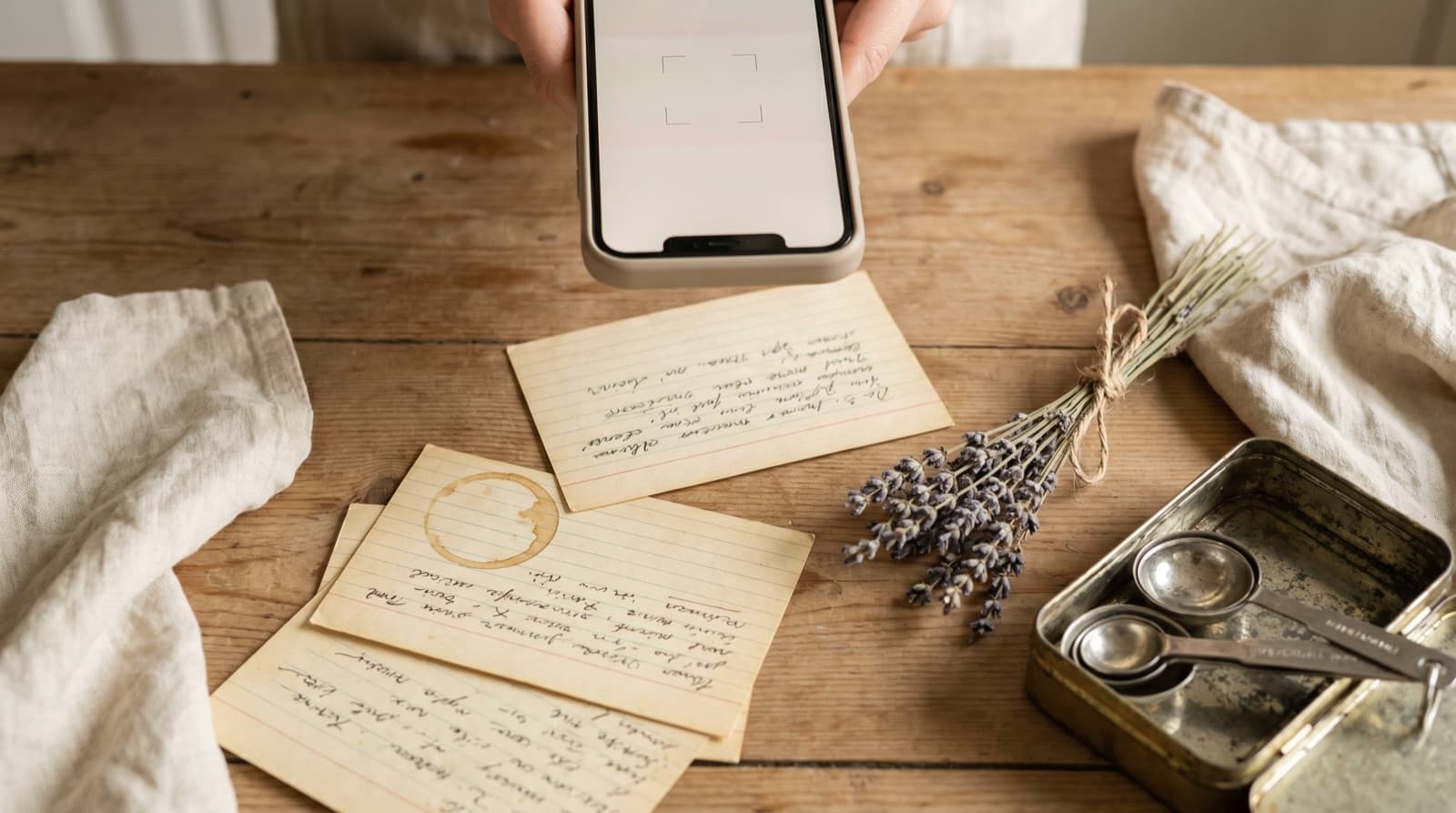
Recipes you typed up from memory or a printed card: Same as above. Screenshot the OneNote page and use camera import. If the original card is still accessible, photographing the card directly gives Pantree slightly cleaner source material — but a OneNote screenshot works fine for well-formatted notes.
Recipes buried in general-purpose notebooks: Use OneNote search (Ctrl+F) with terms like “serves”, “ingredients”, “preheat”, or specific ingredients you use often. Collect recipe pages into a dedicated section, then migrate that section to Pantree using the URL or camera import method above.
Prioritising the Migration
A OneNote archive with dozens of scattered recipe pages is not a single-session migration. The practical approach is the same one that works for Evernote and Notion: start with the recipes you actually cook, not the ones you saved optimistically.
Sort your recipe section by “Last Modified” (right-click the section tab, then Sort Pages). The most recently viewed recipes are almost certainly the ones you cook regularly. Migrate the top twenty. After that, work through the rest as you want to cook something specific — search OneNote, find the recipe, import it into Pantree, cook from Pantree. The archive migrates itself, recipe by recipe, as you use it.
Recipes you clipped two years ago and have never opened are not worth migrating at all. The value of a recipe archive is not the number of pages it contains. It is the fraction you cook from. If you have 200 OneNote recipes and cook from 35 of them, migrate the 35.
What to Keep in OneNote
OneNote is still genuinely useful for the planning and curation layer. Cooking experiment notes (“used harissa instead of chilli paste — much better”), links to recipes you want to try eventually, event menus, grocery budget logs, meal planning calendars — these benefit from OneNote’s flexible, hierarchical notebook structure and its tight integration with the rest of Office 365. If you plan meals in a spreadsheet and track spending in Excel, keeping those next to a recipe reference section in OneNote makes sense.
What doesn’t make sense is using OneNote as your primary cooking library — the set of recipes you open on the counter, scale for guests, and shop from. That job needs structured data. Move the execution layer into a dedicated app. Keep OneNote as inbox, research, and reference if it suits your workflow. The two coexist without conflict: OneNote as the planning layer, Pantree as the place where recipes become dinner.
OneNote was built to capture everything. It does that brilliantly. It just saved your recipes in a container that can’t cook with them. The fix is fifteen seconds and a URL.
Frequently Asked Questions
Can I export my OneNote recipes into a recipe app?
Not directly. OneNote exports pages as .docx files or PDF, and both formats encode recipes as free-form text — the ingredient list is a paragraph, not a structured list of quantities and ingredient names. No recipe app accepts OneNote exports as an import format. The fastest route is to re-import each recipe via its original URL (if you clipped it from a website) or via Pantree's camera import for notes you typed manually.
My OneNote notebooks are a mix of work notes and recipes. How do I find all the recipes?
OneNote's search (Ctrl+F on desktop, the magnifying glass on mobile) works across all notebooks. Search for terms like 'ingredients', 'instructions', 'serves', or specific ingredients you cook with often — chicken, pasta, salmon. Each hit is likely a recipe. Once you've found them, the quickest fix is to create a dedicated 'Recipes' section and move the recipe pages there, then migrate them into Pantree at your own pace.
What's the quickest way to move a large OneNote recipe collection to Pantree?
Batch by source URL first. Most recipes in OneNote were clipped from websites — BBC Good Food, AllRecipes, Serious Eats, NYT Cooking, and so on. For each recipe page, check the note for its source URL (OneNote web clipper stores a 'Source' link in the note footer). Copy that URL and paste it into Pantree via + → Import from URL. Pantree fetches the structured recipe data — ingredients with quantities, steps, serving size — from the original page in about 15 seconds. A section of 50 clipped recipes can be migrated in under two hours.
What about recipes I typed directly into OneNote?
Use Pantree's camera import. Open the recipe page in OneNote, take a screenshot of the full note, then import via + → Import from Photo in Pantree. Pantree's image parser extracts the ingredient list and steps from the screenshot and reconstructs the recipe as structured data — quantities, units, ingredient names — without manual re-entry. For most recipes this takes about 30 seconds. Very long recipes with multiple component sections may need a correction or two on unusual measurements.
Is OneNote's web clipper good for recipes?
For archiving, yes. OneNote's browser extension captures recipe pages cleanly, stores the source URL, and syncs across devices. For cooking, no. A clipped recipe is a flat image of a recipe, not a structured recipe you can scale or shop from. The clip saves the page content as text and images, but OneNote has no concept that '250g plain flour' is a quantity, a unit, and an ingredient that needs to multiply when serving size changes. That gap is exactly what a dedicated recipe app fills.
Should I keep OneNote or switch entirely to a recipe app?
Keep OneNote for what it does well: planning documents, research notes, links to recipes you want to try, cooking experiment logs, grocery budget tracking. These benefit from OneNote's flexible notebook structure and deep Office 365 integration. Use Pantree for the execution layer — the active library you cook from week to week, with scaling, shopping lists, and ingredient search. The two coexist perfectly well. OneNote as inbox and reference; Pantree as the place where recipes become dinner.
Your OneNote recipes deserve to be cookable.
Import any recipe URL into Pantree and it becomes a structured, scalable, shoppable entry in a library you own — scaling, shopping lists, and ingredient search included. Free on the App Store.
