How to Save Recipes from Whisk / Samsung Food (Before You Lose Them)
Whisk built a genuinely useful recipe-saving browser extension and a clean mobile app — and then Samsung acquired it and turned it into Samsung Food. The recipes you saved are still there. The problem is that they’re on Samsung’s servers, there is no export button, and your library goes nowhere if you want to leave.
How Whisk Became the Home for a Lot of Recipe Libraries
Whisk launched in 2012 with a genuinely good idea: a browser extension that let you clip any recipe from any website and save it to a central library, with automatic ingredient parsing and a shopping list that aggregated across multiple recipes. For the cooking-at-home crowd who spent time on food blogs and recipe sites, this was close to ideal. Save it once, scale it later, shop from a single list.
By the mid-2010s, Whisk had accumulated a large user base of methodical home cooks — exactly the kind of people who build a recipe library carefully over years and expect it to be there indefinitely. The app remained independent and well-regarded until Samsung acquired it in 2019, initially to power recipe features on Samsung Family Hub smart refrigerators. The standalone Whisk app continued to operate more or less unchanged for a few years. Then in 2023, Samsung rebranded it entirely as “Samsung Food.”
The Whisk-to-Samsung-Food rebrand did not break anything immediately — saved recipes carried over, the interface looked largely the same — but it prompted a reassessment among users who had never bought a Samsung appliance and found themselves now running a recipe app branded by a hardware manufacturer. A significant proportion of Whisk’s user base was on iOS and Android agnostic, not invested in the Samsung ecosystem at all. For those users, the rebrand was a signal: this app is being maintained for refrigerators, not for you.
The Export Problem
Samsung Food does not have a recipe export feature. There is no “Download my library” button, no CSV option, no standard recipe format export. Your saved recipes live in Samsung’s servers and are accessible through the Samsung Food interface — nothing else. If you want to switch to a different recipe app, you are starting from scratch unless you know the source-URL workaround.
This is not unusual. The same problem exists with Paprika (whose .paprikarecipes export format no other app can open), NYT Cooking (no export at all), and AllRecipes and Yummly (export functions that produce formats no competitor imports). The recipe library is the retention mechanism, and portability is rarely a design priority.
What makes Samsung Food’s situation more pointed is the platform dependency. Paprika is an independent app company — you can reasonably expect it to keep operating as long as there is commercial interest. Samsung Food is a feature add-on to a hardware product line. Consumer app features bundled with hardware have a historically uneven survival rate, and Samsung has discontinued or significantly changed consumer software products before. Whether or not Samsung Food is going away anytime soon, the argument for portability doesn’t require the app to be at risk — it just requires you to want to choose where your recipe library lives.
How to Get Your Recipes Out of Samsung Food
The method depends on how each recipe was saved. Most libraries have a mix of web-clipped recipes and a smaller number of manually entered or adapted ones.
Recipes saved via the browser extension or in-app clipping: This is the majority of most Samsung Food / Whisk libraries. Open the recipe in Samsung Food and look for the source URL — it appears at the bottom of the recipe detail screen, usually as a link labelled with the site name (“From BBC Good Food” or similar, or a bare URL). Copy that URL and paste it into Pantree via + → Import from URL. Pantree fetches the recipe directly from the source page — BBC Good Food, Serious Eats, AllRecipes, Bon Appétit, Smitten Kitchen, and the large majority of major recipe sites — and saves it as a structured entry with scalable servings and a shopping list in about 15 seconds.
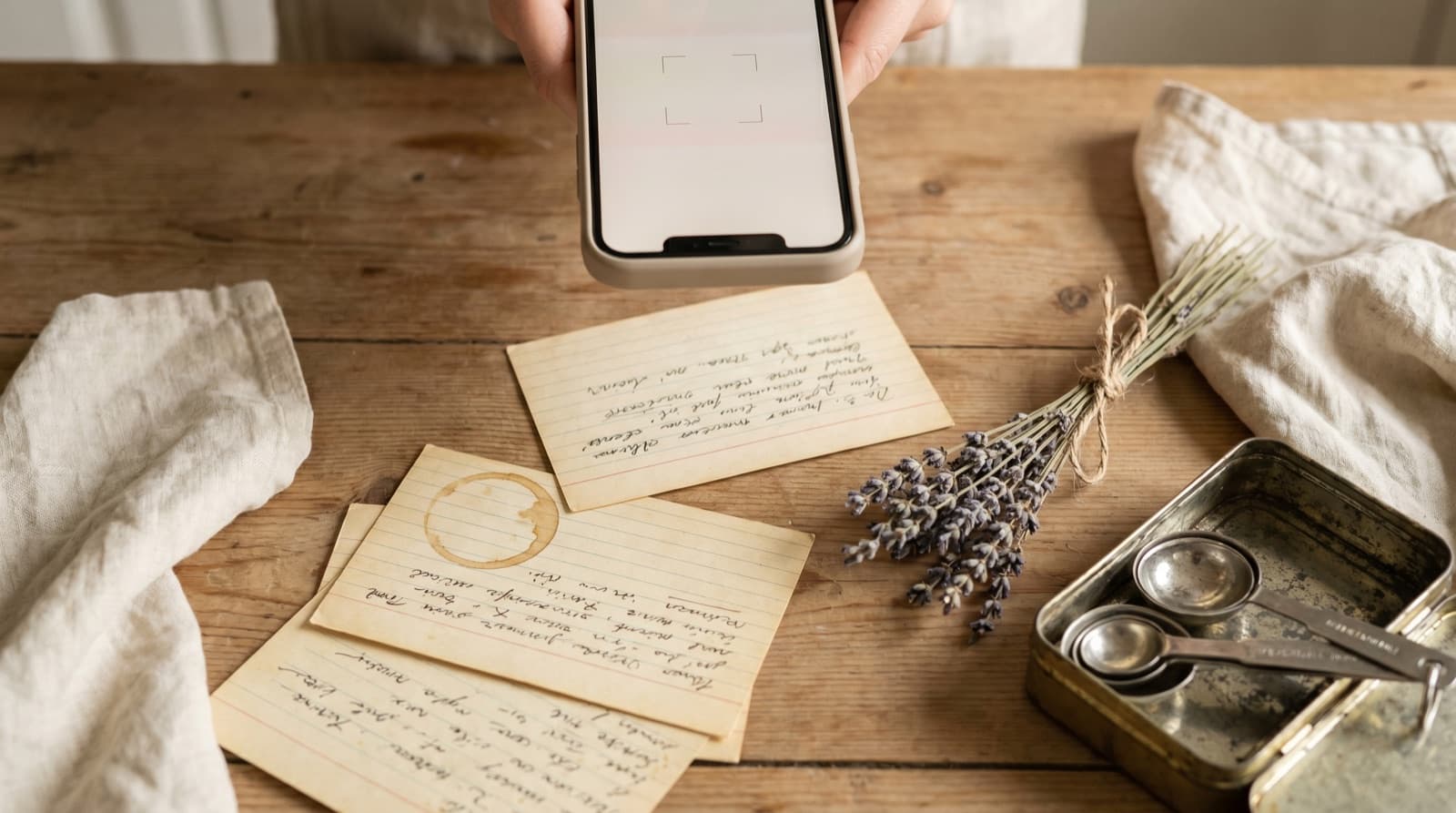
Recipes where the source URL is gone or has changed: Samsung Food saved the recipe text when you first clipped it, so even if the original page has since moved behind a paywall or disappeared, the recipe is still in your Samsung Food library. In this case the URL import will fail — Pantree won’t find a valid recipe at that address. Take a screenshot of the Samsung Food recipe screen (make sure the ingredient list is fully visible) and import it via + → Import from Photo in Pantree. Pantree’s image parser reads quantities, units, and ingredient names from the screenshot as structured fields. Most home-cook recipes import accurately in one pass.
Recipes you typed manually into Samsung Food: Screenshot and camera import, as above. For short recipes, tapping + → Add Recipe Manually in Pantree and typing it in directly takes two minutes or less.
Recipes without any source URL: Some recipes in Samsung Food may have been created in the app from scratch or entered via meal planning without a source. These have no URL to reference. Screenshot the recipe screen and use camera import.
Prioritising a Large Library
Whisk’s browser extension made it almost frictionless to save recipes — which means many users have libraries of several hundred saved recipes and have cooked from perhaps 30. A full migration of 300 recipes is possible in a long afternoon but is probably not worth doing in one sitting, and certainly not worth doing for recipes you have never made.
The practical approach: in Samsung Food, look for any sorting or filtering option by frequency or recent activity. The recipes you have actually cooked are worth migrating first. After that, migrate on demand — when you want to cook something from your Samsung Food library, find the source URL, import it into Pantree, and continue. A library of 200 recipes migrates itself in a month of regular cooking without a dedicated session.
This is the same on-demand approach that works well for Paprika and Evernote migrations: the recipes you actually cook are the ones worth having in your new library, and you know which those are only when you want to cook them.
What Samsung Food Does Well
Samsung Food’s integration with Samsung Family Hub refrigerators is genuinely useful if you own one — the fridge can display recipes, and the app can communicate with the fridge’s internal camera to suggest recipes based on visible ingredients. For Samsung appliance owners, this is a compelling ecosystem feature that no independent recipe app replicates.
The shopping list aggregation works well and has for years — this was Whisk’s original core competency. The meal planning interface is clean, and for users who want a recipe app that functions primarily as a weekly shopping assistant, Samsung Food is a reasonable choice.
Where it falls short is in depth of recipe management: no ingredient scaling that persists when you return to a recipe, limited search within your saved library, and no way to organise recipes beyond basic folders. These are the gaps that independent recipe apps have prioritised, and they matter if you cook from your library regularly rather than using it purely as a clipping store for future planning.
The Portability Question
Samsung Food is a case study in the risk of building a recipe library inside a platform you do not control. Whisk was an independent company making an independent app; Samsung Food is a feature in a hardware manufacturer’s software stack. That is not a reason to panic — Samsung is a large company and Samsung Food has an active user base — but it is a reason to ensure your recipe library exists somewhere that belongs to you.
Every recipe you save from a known source has a URL that you can use to re-import it anywhere. That URL is the portable version of your recipe, and it exists regardless of which app you saved it from. Getting your Samsung Food library into Pantree is largely a matter of using those URLs — which Samsung Food preserves and displays — before you need to.
Frequently Asked Questions
Can I export my recipes from Samsung Food (Whisk)?
Samsung Food does not offer a recipe export button or a downloadable backup file. Your saved recipe library — web-clipped recipes, manually entered recipes, recipes imported via the browser extension — is stored on Samsung's servers and is not available in a portable format you can take elsewhere. The only supported exit path is re-importing each recipe individually via its original source URL in another app.
What happened to Whisk? Is it the same as Samsung Food?
Whisk was a recipe saving and shopping list app founded in 2012. Samsung acquired Whisk in 2019 and integrated the technology into Samsung Family Hub smart refrigerators. In 2023, Samsung rebranded the standalone app as 'Samsung Food.' The core functionality — recipe clipping, shopping list generation, meal planning — is largely the same. Users who had saved libraries in Whisk kept their recipes through the rebrand, but the rebranding to Samsung Food has led many non-Samsung-device users to reconsider whether they want their recipe library tied to a hardware manufacturer's ecosystem.
How do I get my recipes out of Samsung Food into Pantree?
For each recipe saved from a website, open the recipe in Samsung Food and find the source URL — it's usually visible at the bottom of the recipe detail screen or in a 'Source' link. Copy that URL and paste it into Pantree via + → Import from URL. Pantree fetches the recipe directly from the source page and saves it as a structured entry with scalable servings and a shopping list. For recipes with no source URL (manually typed, or where the original page is gone), screenshot the Samsung Food recipe screen and use Pantree's camera import via + → Import from Photo.
Does Pantree support the 'Save to Whisk' browser extension?
Pantree does not use the Save to Whisk extension, but it achieves the same result more directly. The Pantree iOS app accepts any recipe URL via the share sheet — tap Share in Safari or Chrome while on a recipe page, then tap Pantree, and the recipe is clipped automatically. The Pantree share extension works from any browser on iOS and clears the ingredient list and method as structured data, not as a saved link to a page that may later change.
Is Samsung Food going away?
Samsung has not announced any plans to discontinue Samsung Food as of late 2026. However, the broader pattern with consumer apps acquired by hardware manufacturers is that they tend to be maintained primarily for the hardware integration use case — in this instance, Samsung Family Hub refrigerators — rather than as standalone recipe management tools. Whether or not Samsung Food continues to operate, the absence of an export feature means your recipe library is dependent on a service you do not control. The practical argument for moving to a portable recipe app is not that Samsung Food is about to shut down; it is that your recipe library should not live somewhere you cannot take it with you.
I saved hundreds of recipes in Whisk years ago. Is a full migration realistic?
A full migration of a large Whisk library is realistic but should be done selectively. Most users with 200+ saved recipes have actually cooked from perhaps 15–25 of them with any regularity. Start with those: the recipes you've made more than once, or that you immediately reach for when planning a week. Most will have source URLs that import into Pantree in under 15 seconds each. Migrate the rest on demand — when you want to cook something from your Whisk library, grab the source URL, import it into Pantree, and that recipe is migrated. A library of 200 transfers itself in a month of normal cooking without a dedicated migration session.
Your Samsung Food recipes deserve a portable home.
Import any recipe URL into Pantree and it becomes a structured, scalable, shoppable entry in a library you own — on your terms, not Samsung’s. Free on the App Store.
